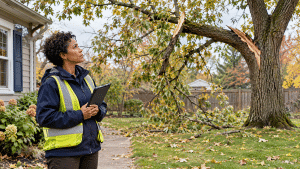
A homeowner sees a large limb across the driveway from an upstairs window. They open your storm damage inquiry page and find a form that requires three photos before they can send it. Do they go outside for a better angle, call the number in the footer, or try another company?
Build your storm damage inquiry page around two decisions. First, should the visitor contact emergency services, the utility, or your office? Once your office is the right contact, what can the visitor tell you from where they already are? If you’re still planning the rest of the website, start with our tree removal website checklist.
Key Takeaways
- Put emergency and utility directions before your urgent inquiry form.
- Show the phone number your team actually answers and when someone reviews requests.
- Ask for a callback number, the property location, and what the customer already knows.
- Accept requests without photos. Invite customers to share only photos they already have from a safe location.
- Test what happens on a phone and what reaches the person responsible for callbacks.
Get the free Urgent Tree Damage Intake Worksheet to test the same steps on your own website.
Put the urgent contact instructions ahead of the form
On a phone, the first screen should tell someone where to turn when people are in immediate danger or a power line may be involved. Repeat that instruction near the photo control if the form is far enough down the page that the first message is out of view. Use visible text. A visitor shouldn’t have to open a menu or interpret an icon to find it.
We Energies tells customers to stay away from downed power lines and anything touching them, and to call 911 and the utility to report a downed line. Link to your local utility’s reporting instructions. For a Wisconsin company in the We Energies service area, use its downed power line safety page. For crews serving multiple utility territories, show customers how to find the right utility for the property.
Use a short message above your own contact options. For example, “If anyone is in immediate danger, call 911. If a power line is down or may be touching the tree, stay away and follow your utility’s emergency reporting instructions. Keep clear of damaged trees and hanging limbs.” The International Society of Arboriculture’s storm-damage guidance explains why damaged trees call for precautions and professional evaluation.
Show the phone number your team actually answers
If your company staffs an urgent line, give it a tap-to-call button with a label such as “Call about storm damage.” Put the hours right beside it. If the same number goes to voicemail after hours, say when messages are reviewed. An estimate inbox checked the next business day should say so before a visitor spends time filling out the form.
Update that message when storms change your capacity. It may be accurate to say you are taking requests for a callback and have limited availability for new visits. Use the same message in voicemail, on the page, and on the form confirmation. Keep a separate “Request a planned tree work estimate” link for someone looking to remove a tree before a new driveway goes in.
Ask what the customer already knows
The form should give the office enough information to return the call and decide who needs to review the request. Start with the property address or nearest known location, a callback number, and a short description. Ask the customer to choose what’s affected, using options like driveway or entrance, building, vehicle, yard only, or unsure. Let people choose more than one when relevant.
If you ask about possible utility involvement, use “yes,” “no,” and “unsure” and keep your emergency instructions visible on every path. A form answer should never function as an all-clear. Use the answer to help staff handle the callback. Skip prompts for tree diameter, lean angle, root movement, or wire identification. A caller describing what they already saw gives your team a start.
For a commercial property, add an optional on-site contact or managed entrance field. A property manager reporting a limb across a tenant entrance may already know which entrance is closed and who has access to the site. That’s useful to the office. Asking the manager to walk the property or check the other side of the limb would add risk and delay.
Make the photo field easy to skip
Place the upload after the callback details. Put the instruction beside the upload control, where it will be read at the moment someone decides whether to use it. Try “Photos are optional. Attach a photo you already have from a safe location. Please skip this step if taking a photo would mean moving closer or leaving a safe place.”
A wide photo already on the customer’s phone can show how a fallen limb relates to a driveway or structure. A close-up of damaged wood can be harder for the office to place. Give customers permission to send what they have and describe the rest. Keep the request open if they have zero photos or their upload fails.
Test your actual upload on a phone. Say what file types and sizes you accept, show when a file has finished uploading, and give the customer a clear way to remove a file and continue. Use a test image your site rejects on purpose. Verify that the name, callback number, and description are still there when you submit without the file. Someone sending a request after a storm may be on a weak connection and have little reason to start over.
Make the office handoff as specific as the form
Give the request a subject line your staff recognizes, such as “Storm damage request | driveway blocked | [town].” Put the callback number and location at the top of the notification. Include the customer’s exact description, the affected location, any reported utility concern, and whether a photo came through. Route submissions to the person or shared inbox that actually owns the callback. Decide who covers it when that person is out.
Here are three useful cases to rehearse.
- Driveway blocked, safe photo available. Staff confirms the address and what access is affected, then explains whether the company can arrange a visit or when it can give the caller an update.
- Possible wire involvement, no photo. The page has already shown emergency and utility directions. If a request still reaches the office, staff reiterates those directions and follows the company’s procedure for utility-related inquiries.
- Limb down in the yard, no access issue reported. Staff reviews the request under the company’s current service policy and explains the available next step. The customer’s choices help route the message without deciding how safe the site is.
After submission, acknowledge receipt. “We received your storm damage request. Our office reviews these messages during [hours]. We’ll call the number you provided to discuss availability and next steps.” Use your real hours in the final copy. Keep emergency contact guidance visible here too, since conditions can change while someone waits.
Test what customers and staff see
Run through the inquiry on a phone during a quiet week. Test the call button and voicemail, the form without a photo, a successful upload, and a rejected upload. Walk through the wire-involvement path without calling emergency services as part of the test. Then have the staff member who would normally handle the request open the notification and explain what they would do first. Our contact form testing guide shows how to check the path from the submit button to the right inbox.
Go back to the first screen and read it as if you were the homeowner looking out the window. Can you find the right contact path before the site asks you to do anything? Can your office take the next step from what you already know? Fix any step that makes either person guess.
Get the Urgent Tree Damage Intake Worksheet
Use the one-page worksheet to check the first screen, try a request without a photo, and see what reaches the person handling callbacks. Pick three fixes to make first.
Get Your Free Urgent Tree Damage Intake Worksheet
Get a second look at your storm damage inquiry page
Industry Ignitors can review your website and online presence and point out specific changes that make it easier for customers to find the right contact and for your office to act on their requests.